Saturday, May 12, 2012

Differences between migration and upgrade


There are three options for deploying a new Windows Server 2008 R2 operating system:
  •    In-place upgrade
  •   Clean install
  •    Migration

In-place upgrade and clean install both have advantages and disadvantages. This guide describes the third option: migration.
There is a difference between migration and an in-place upgrade. Migration is required when hardware differences do not permit an upgrade. Because Windows Server 2008 R2 is an x64-only-based operating system, it is impossible to upgrade x86-based versions of Windows Server 2003 or Windows Server 2008 to a computer running Windows Server 2008 R2.
In addition, server migration can be a preferred deployment mechanism in a number of other scenarios:
  • ·         When the performance of the old server has degraded as a result of numerous software installations, updates, and patches
  • ·         When a physical server must be migrated to a virtual server
  • ·         When your scenario calls for migration from a full installation option to a Server Core installation option

You can use the instructions in this guide to migrate legacy settings and data to the new operating system.
NOTE: If your existing hardware is x64-based but it is running an x86-based operating system, you must still use the instructions in this guide to migrate your server roles.
Upgrade and migration methods
Method
Advantage
Disadvantage
In-place upgrade (not discussed in this guide)
All your current settings and configurations are retained.
The upgraded server retains all the old data.
In-place upgrade requires more downtime because the existing operating system is being replaced with the new operating system.
If the in-place upgrade is not successful, roll-back is more complex.
Clean install (not discussed in this guide)
Removes all the old data and configuration that you no longer need.
You must reconfigure the new computer.
Migration (discussed in this guide)
All your current settings and configuration are retained, while all the old data and configuration that you no longer need are removed.
Provides a transition path from a physical environment to a virtualized environment and from a full installation to a Server Core installation.
Requires less downtime because the old server remains operational for the most of the migration process.
More planning and verification are required to ensure a successful migration.

Hopefully this document will increase your Knowledge more. If you do not already know.

Benefits for Organizations when Users are Not Local Administrators


There are a number of benefits to organizations when users do not have local administrator rights on their desktop systems. Desktop management costs are reduced because the endpoint is more controlled, compliance objectives are met and your distributed desktop environment is more secure.

Better Protection against Malware

When the locally logged on user does not have local administrative rights, the programs and processes that the user runs do not have rights to modify core operating system files and settings. This reduces the surface area of an attack from malware. Malware that runs on the system in the context of the logged on user is not able to change core system settings. While this does not mean that the system does n’t need other security software such as firewall and anti-virus, removal of local admin rights does provide a more secure environment.

For example, there are many benefits when running the browser and mail client in a mode that does not have local admin rights. As users interact with web sites and data sources that are not necessarily trusted, malware that may be encountered is not as likely to be able to make unauthorized changes and introduce system instabilities.

Every month Microsoft releases a wide range of software updates (also known as patch Tuesday). Many of these updates are security related. A large percentage of software updates that are released by Microsoft every “patch Tuesday”

Wednesday, May 2, 2012

Domain Users Cannot Join Workstation or Server to a Domain

In Windows Server 2008 Domain users can join 10 workstation or server to a Domain. This means that any user who logs on to the domain as a User and is authenticated can add workstations or server to the domain without needing administration privileges. So user has the permission to join 10 workstation to a domain by default. To change this permission please follow below screen shots.


Go to Start > Administrative Tools > ADSI Edit


Right Click and click on connect to....

Just click on OK.


Right Click on and go to properties


Select ms-DS-MachineAccountsQuota 10.

Click on Edit.


Convert it to 0

Click on Apply & OK.
Now other Domain user will not be able to add workstation to a domain.

Tuesday, May 1, 2012

Command to find FSMO Roles in an organization

Type " net dom query fsmo" is a useful command to easily find which server is contain FSMo roles. suppose we have two additional domain. so by this command we can easily find which additional domain contain which FSMO Role.


Below is the better scenario to contain FSMO Roles in you server.

If you have two server:


If you have three server:


Reverse Lookup Zone and PTR

After successful installation of Active directory DNS address will be change to 127.0.0.1. So change the  Preferred DNS server IP address. For this test server DNA and Active directory is in same PC. so here we change the DNS address, Reverse lookup zone & PTR. below screen shots for step by step guide.

After installation AD, Preferred DNS server address will change to 127.0.0.1 automatically. So change the Preferred DNS server IP as per your configuration.


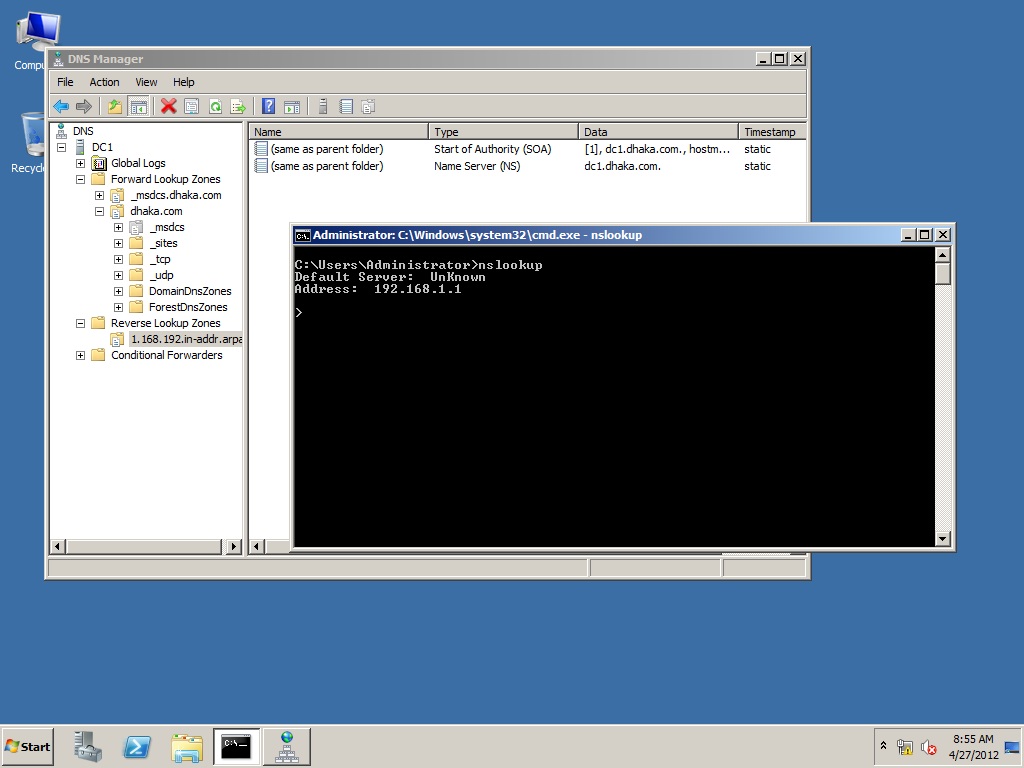
here doing nslookup we found this status of DNS. Its not running.

Preferred DNS server IP change


Click on OK


Now we need to configure Reverse Lookup Zone


Domain dhaka.com and here PDC (Primary Domain Controller) is dc1.

Right click on Reverse Lookup Zone and select New Zone.

click on Next.

This is the same DNS server as Active Directory is also running. here don't have other DNS server. click on Next.


Replication for all DNS server running on Domain dhaka.com. click on Next

Select IPV4, click on next


Insert your network address. In this case 192.168.1.0. click on Next.


Select on "Allow both nonsecure and secure dynamic update". when we will connect our client PC to this domain, than DNS will automatically update the client PC record. If we don't select this we will need to manually update all client PC record in DNS.

Click on Finish.


Now go start> Run> CMD> and type nslookup. Still server Unknown. Need to do some more things.

Again go to the DNS Manager. Right Click on Domain controller. here dc1. and click on Properties.


Select Update associated pointer (PTR) record. Click Apply and OK.


Now in command prompt type: nslookup. now we found DNS server is running properly.


If we have Additional Domain we can run command: repadmin /syncall. it should finish with out error. if found any error we must solve this error.
we also can run command: netdom query fsmo to check FSMO Roles. Here all FSMO Role is in one server, no other additional domain is connected. 
This two command is very important command to find error and FSMO Roles.


Friday, April 27, 2012

Install AD on Windows 2008

Active Directory Install Command. Three process to start install AD:

1. Start > Run > dcpromo
2. Powershell > dcpromo
3. Start > Administrative tools > Server Manager > Roles > Add Role

Before start installing AD on your windows 2008 R2 machine set Computer name, IP address, Time/Time zone.
Start > Run > oobe
Here you can do all three task easily.

Confirm your domain name & NetBios name. Register your domain name to the domain registration company if you want to publish internet.

Now start installing AD. Follow below steps:


Click Use advanced mode installation.

Click on Next

Click on Next


This is a fresh new domain in a new forest, so in this case click a new Domain in a new Forest.


Insert FQDN. Example: dhaka.com


Insert Domain NetBios Name to locate Primary Domain Controller (PDC). For more information please click on below link.
http://technet.microsoft.com/en-us/library/cc961556.aspx


Click Yes to create DNS in this PC


Location for Database, Log file and SYSVOL. By default location is in C Drive. Better to leave this as it is.


Insert password. It will need for recovery purpose if need.


Can take backup of settings by click on "Export Settings"


Active Directory will install and automatic restart


After successfully installed, it will restart and prompt for user/password to log in server.